
How to Use Your Image Gallery for Custom Greeting Cards
Upload an image once and use it everywhere. This video shows how your gallery collects every image you upload, how to pick one for a new card size without uploading it again, how the little i icon shows you where each image has been used, and how the same gallery serves our fine art print service too.
Start Designing Your CardThe steps, written out.
Prefer to read? Here is everything the video covers, in order.
Open your gallery
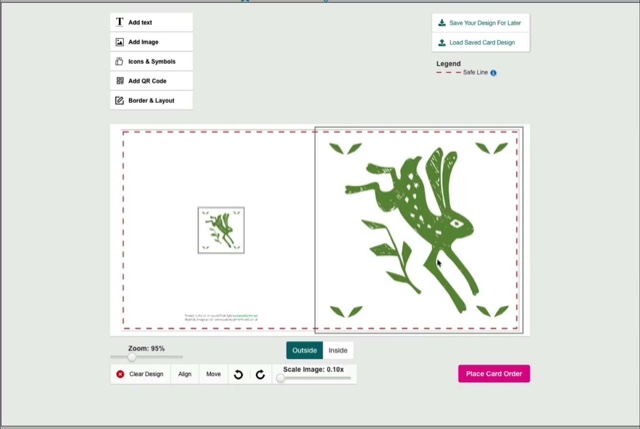
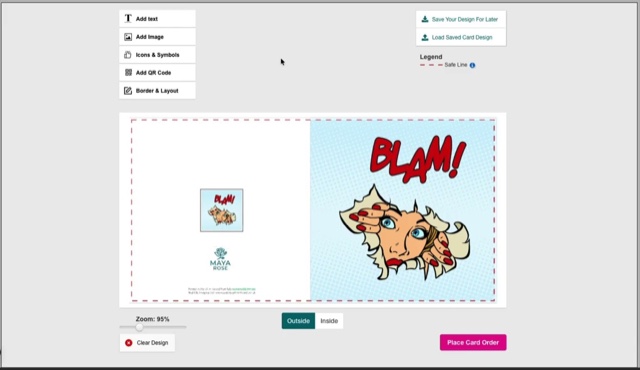
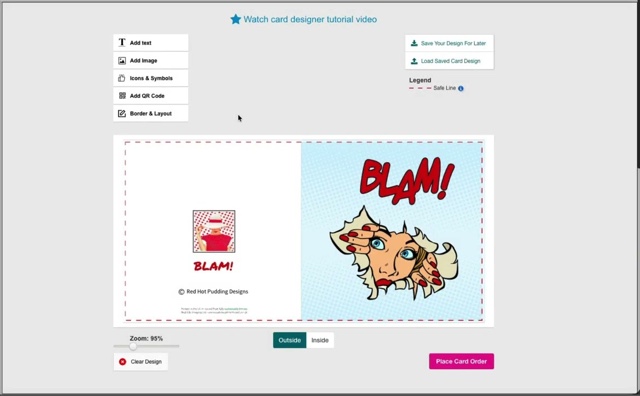
Click Add Image, then Choose from Your Gallery. Everything you’ve uploaded while signed in is there.
Pick an image
Click one to add it to the card. No re-uploading, however many sizes you make.
See where it’s been used
The small i icon on any image lists every card design and fine art print order that used it.
Keep your logo there
Your gallery is the natural home for a logo or anything else you add to most cards.
One gallery, two services
Order fine art prints with us and you’ll find the very same images waiting.
Video transcript.
The written transcript for this video is on its way. In the meantime the steps above cover everything it shows.
Ready to try it?
Open the card designer and try it on your own artwork, or head back for the rest of the tutorials.