
How to Reorder or Edit Past Greeting Card Designs in a Few Clicks
Sold out and need more? This video shows how every completed order and saved design sits in one place in your account, how to reorder a card exactly as it was in a couple of clicks, how to open one in the designer to change it first, and how to find a design quickly by its Order ID or Design ID. It’s the third of four videos on saving and reordering.
Start Designing Your CardThe steps, written out.
Prefer to read? Here is everything the video covers, in order.
Open Your Orders & Designs
Sign in and go to Your Orders & Designs. Completed Orders and Saved Designs each have their own tab.
Find the card
Scroll, or search by Order ID or Design ID if you have a lot.
Reorder as it was
Click Reorder, choose your quantity, stock and envelopes, and you’re at the basket.
Or edit it first
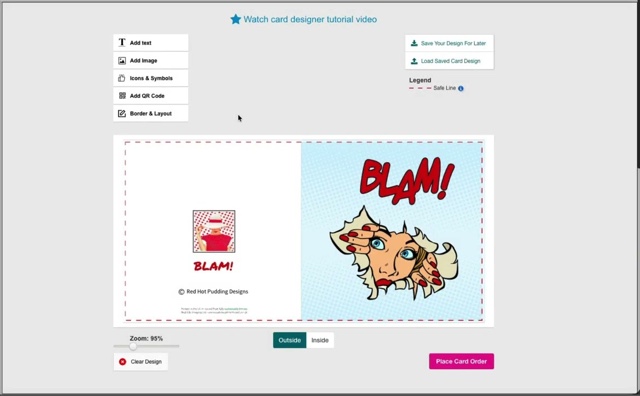
Click Edit to open the design in the designer, change what you need, then order the new version.
Ordered before May 2023?
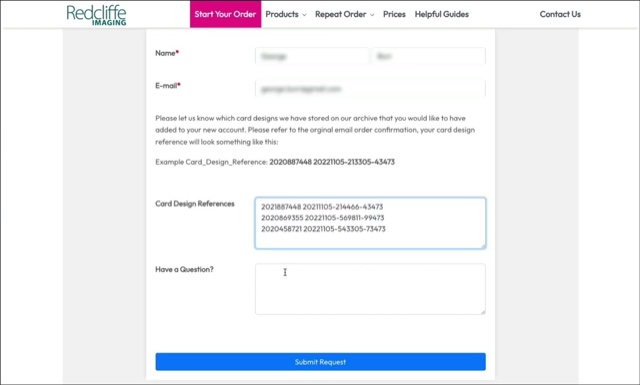
Those designs are in our old archive — see the next video to have them added to your account.
Video transcript.
The written transcript for this video is on its way. In the meantime the steps above cover everything it shows.
Ready to try it?
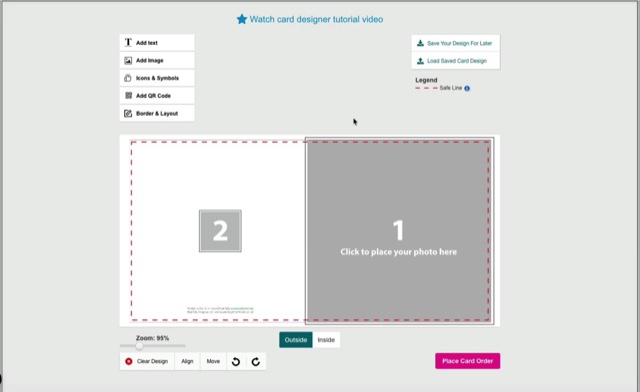
Open the card designer and try it on your own artwork, or head back for the rest of the tutorials.