
How to Add a Custom Border Colour to Your Greeting Card
Choose any colour for the border of your greeting card. This short video shows how to add a border around your main image, then pick its colour from the preset palette, the colour slider, or straight from your image with the eyedropper, so the border matches your artwork exactly.
Start Designing Your CardThe steps, written out.
Prefer to read? Here is everything the video covers, in order.
Add your image
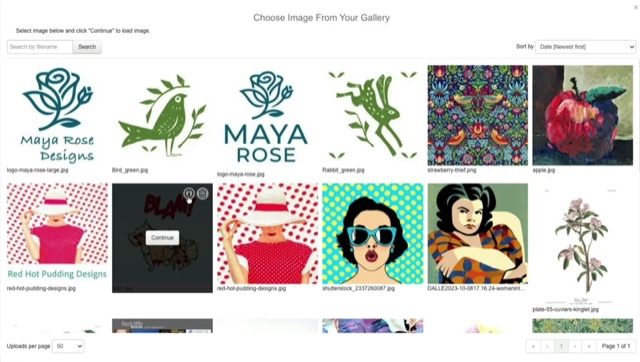
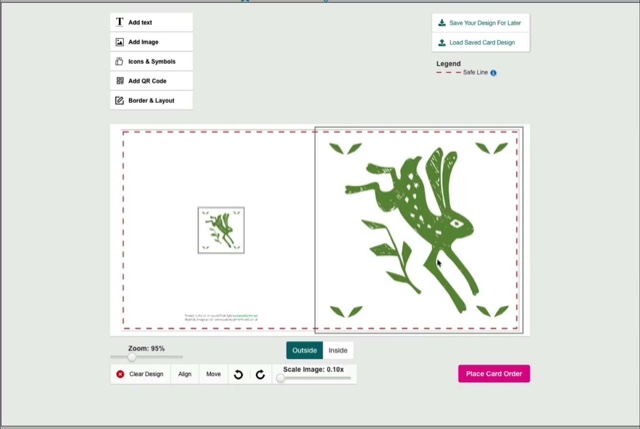
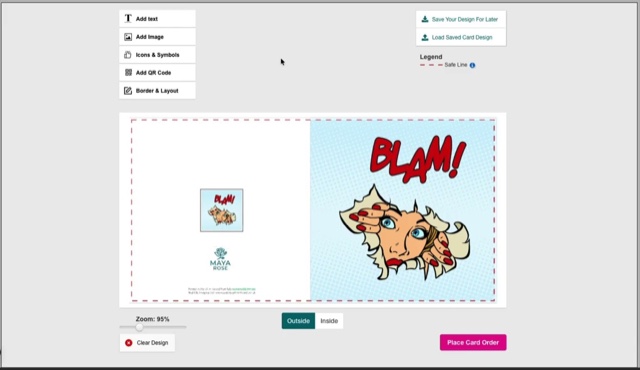
Add an image to your chosen card size. Upload a new one, or choose one from your image gallery.
Switch the border on
Open Border & Layout and tick “Add border around the main image”. A white border appears around the image.
Open the colour picker
Click “Select card border colour”.
Pick a colour
Choose a preset colour from the palette, or use the colour slider for a much wider range.
Match your artwork
Select the eyedropper, hover over your image and click once on the colour you want.
Finish your design
Carry on by adding text, icons and symbols, or a QR code.
Video transcript.
How to add a custom border colour to your greeting card design.
Start by adding an image to your chosen card size. Here I am going to choose an image from my image gallery; these are images I have previously uploaded and used in other card designs.
Next, from Border and Layout, I can click on the box “Add border around the main image”. A white border will now appear around the image.
If I click on “Select card border colour” I can choose from a range of preset colours from the palette. Here I have selected a blue border colour, now green. I can also use the colour slider for a much greater range of colours.
But if I select the eyedropper tool and position it over my image, I can very precisely sample a colour from my image to be my custom border colour. Hover over the image and click once with the eyedropper tool to select the colour you want, and now my border colour exactly matches the key colour from my image.
You can now continue with adding text, selecting icons and symbols, or adding a QR code if required.
Ready to try it?
Open the card designer and try it on your own artwork, or head back for the rest of the tutorials.